

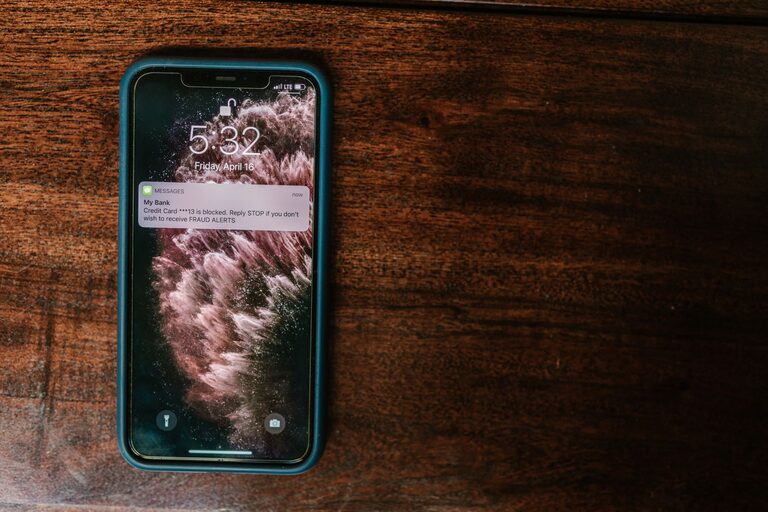
Notifications can help you stay informed, connected, and on top of important tasks. However, frequent alerts can also interrupt your concentration, increase stress, and make it difficult to enjoy uninterrupted time. Setting notification boundaries gives you more control over when and how technology gets your attention.
The goal is not to turn off every alert. Instead, it is to create a system that allows important information through while reducing unnecessary interruptions. With a few thoughtful changes, you can make your devices work better for your daily routine.
Why Notification Boundaries Matter
Every notification creates a small decision: Should you check it now, respond later, or ignore it? Even quick interruptions can make it harder to return to a task. When alerts arrive throughout the day, they can divide your attention and encourage frequent checking.
Notification boundaries can help you:
– Protect focused work or study time
– Reduce unnecessary screen checking
– Create clearer personal time
– Stay present during meals and conversations
– Improve your daily sense of control
– Make important alerts easier to notice
A notification boundary is simply a rule for how and when alerts can reach you. It might be as simple as silencing nonessential app notifications during the morning or checking messages at set times.
Start With a Notification Audit
Before changing your settings, take a few minutes to review what is currently sending alerts. Most devices and apps offer a notification history or settings page. Look through the list and identify which notifications are useful, distracting, or unnecessary.
Ask yourself:
– Which alerts require immediate attention?
– Which notifications can wait until later?
– Which apps send alerts I rarely read?
– Do I need sound, vibration, or banners for this alert?
– Are there notifications I can receive in a daily summary instead?
Group notifications into three categories:
Essential Notifications
These may include important calls, calendar reminders, travel updates, or messages from selected contacts. Keep these notifications active if they support your responsibilities or help you respond to time-sensitive needs.
Helpful but Nonessential Notifications
These alerts may be useful but do not require an immediate response. Examples include general messages, app updates, news summaries, and social activity. Consider turning off sounds or moving these alerts to a scheduled summary.
Unnecessary Notifications
These are alerts that provide little value, such as promotional messages, repeated reminders, or updates from apps you rarely use. Turn them off or remove the app if it no longer serves a purpose.
Use Different Settings for Different Times
A single notification setting may not work for every part of your day. Create separate modes or profiles for work, rest, sleep, travel, and personal time if your device supports them.
For example:
– Focus mode: Allow only work tools, calendars, and selected contacts.
– Personal time: Silence work email and project alerts.
– Sleep mode: Allow emergency contacts while muting other alerts.
– Meeting mode: Block banners, sounds, and vibrations until the meeting ends.
– Travel mode: Keep transportation and reservation updates available.
These modes reduce the need to change every app manually. You can often schedule them to turn on automatically based on the time, location, or calendar event.
Turn Off Alerts That Interrupt Your Attention
Not every notification needs a sound or vibration. Visual alerts can also interrupt you, especially when banners appear across the screen while you are working.
Start by removing sounds and vibrations from low-priority apps. You can also disable lock-screen previews if you do not want messages displayed immediately. For some apps, keeping a quiet notification in the notification center is enough.
Consider turning off:
– Promotional alerts
– Social media likes and comments
– Game updates
– Repeated reminders
– Automatically generated suggestions
– Alerts from rarely used services
The fewer alerts that demand attention, the easier it becomes to focus on the notifications that matter.
Set Specific Times to Check Messages
One of the most effective boundaries is choosing when to check email, messaging apps, and social platforms. Instead of responding whenever an alert appears, create a schedule that fits your responsibilities.
You might check messages:
– At the start of the day
– After completing a focused work session
– Around lunchtime
– In the late afternoon
– At a planned time before ending the day
The exact schedule is less important than making it realistic. If you need to stay available, begin with short periods of uninterrupted time, such as 20 or 30 minutes. As the habit becomes easier, extend those periods.
Let people know when they can expect a response if necessary. A status message or automatic reply can explain that you check messages at certain times.
Create Device Free Spaces
Notification boundaries are easier to maintain when certain areas or activities are protected from device interruptions. Choose a few device-free spaces or moments, such as:
– The dining table
– The bedroom
– Family or social gatherings
– The first 30 minutes after waking
– The final hour before sleep
– Focused reading or creative time
Keep your phone in another room, inside a bag, or facedown and out of reach. Physical distance can make it easier to follow your boundary than relying on willpower alone.
If you use your phone as an alarm, consider placing it across the room or using a separate clock. This can prevent late-night checking and make mornings less dependent on incoming alerts.
Make Important Alerts Easy to Recognize
Reducing notifications does not mean missing something important. Use clear settings to separate urgent alerts from routine ones.
You can:
– Assign different sounds to selected contacts
– Allow calls from chosen people during focus or sleep modes
– Use calendar reminders for scheduled tasks
– Pin important conversations
– Turn on alerts for travel or appointment changes
– Review missed notifications at planned times
A small group of trusted contacts can often reach you through an exception list. This lets you silence routine activity without making yourself completely unavailable.
Explain Your Boundaries Clearly
Notification boundaries work better when other people understand them. You do not need to provide a long explanation. A short, direct message is usually enough.
Try statements such as:
– “I check messages a few times during the day and may not respond immediately.”
– “I keep notifications off during meetings.”
– “I usually stop checking work messages in the evening.”
– “If something is urgent, please call me.”
Clear communication helps set reasonable expectations and reduces pressure to reply instantly.
Review Your Settings Regularly
Your notification needs may change as your schedule, responsibilities, and apps change. Set aside a few minutes each month to review your settings.
Ask:
– Are alerts still helping me?
– Which notifications have I ignored repeatedly?
– Am I receiving alerts outside the hours I intended?
– Do I need to add or remove any exceptions?
– Is one app creating more interruptions than expected?
Small adjustments can keep your system useful. You may discover that an app you once needed no longer deserves constant access to your attention.
Build a Boundary That You Can Maintain
The best notification system is one that fits your real life. Avoid creating rules so strict that they become difficult to follow. Start with one or two changes, such as turning off promotional alerts and scheduling a daily focus period.
Once those changes feel natural, add another boundary. Progress does not require a complete digital reset. A few consistent limits can make your day calmer, more organized, and easier to manage.
Notifications are tools, not commands. By choosing which alerts reach you, when they appear, and how you respond, you can protect your attention while staying connected to what matters most.